MCZ Synch Free
Compare two copies of a folder and bring them in step
MCZ Synch shows your project and its backup side by side and colours every difference. One click brings the backup up to date, and another puts files back from a good backup after something has damaged the project. It is free, with no premium key and no trial, on Windows and Linux.
New in 1.9.16
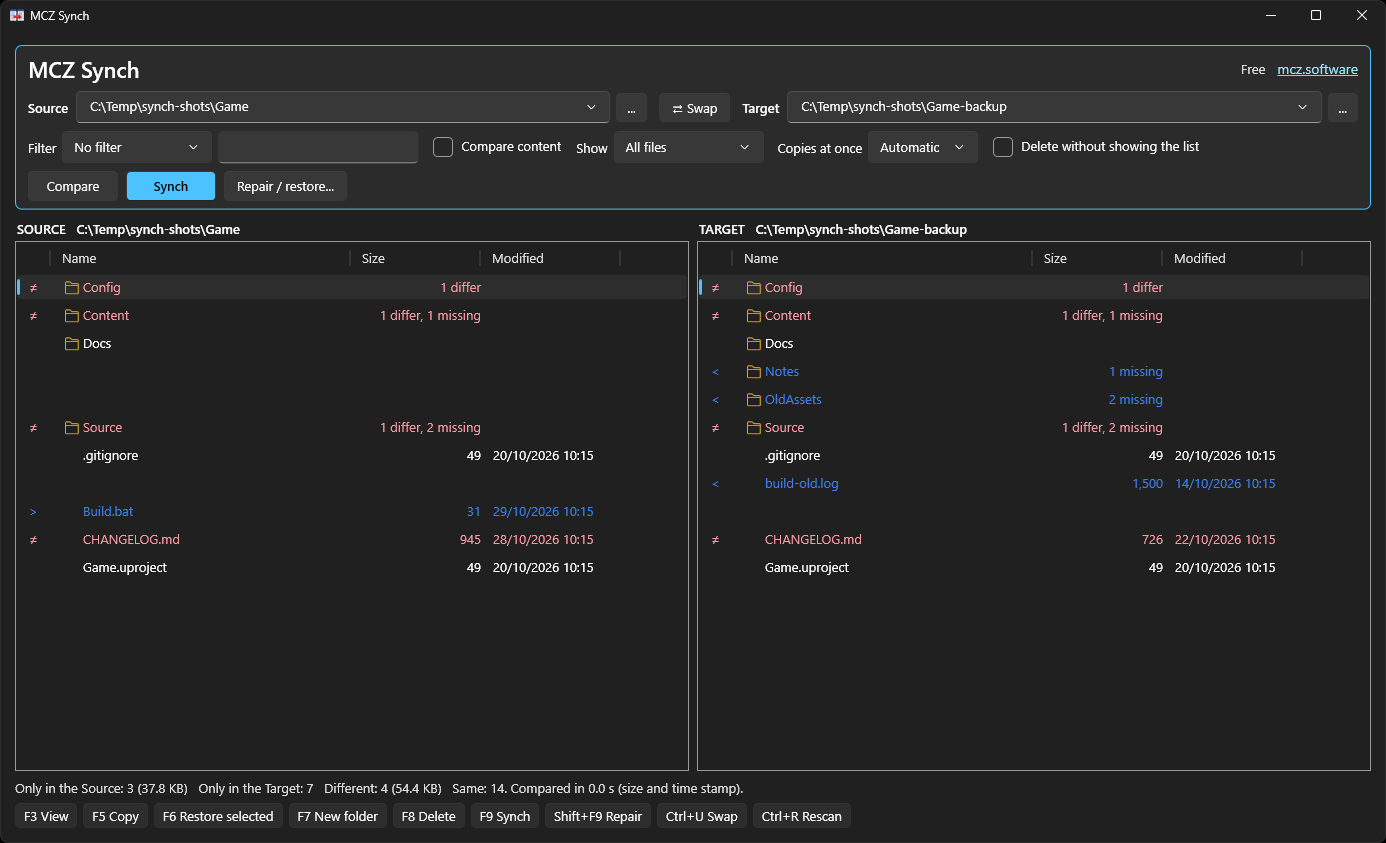
Two panels
The Source on the left, the Target on the right, always showing the same folder inside each copy. Lines stay level, so every file sits next to its partner.
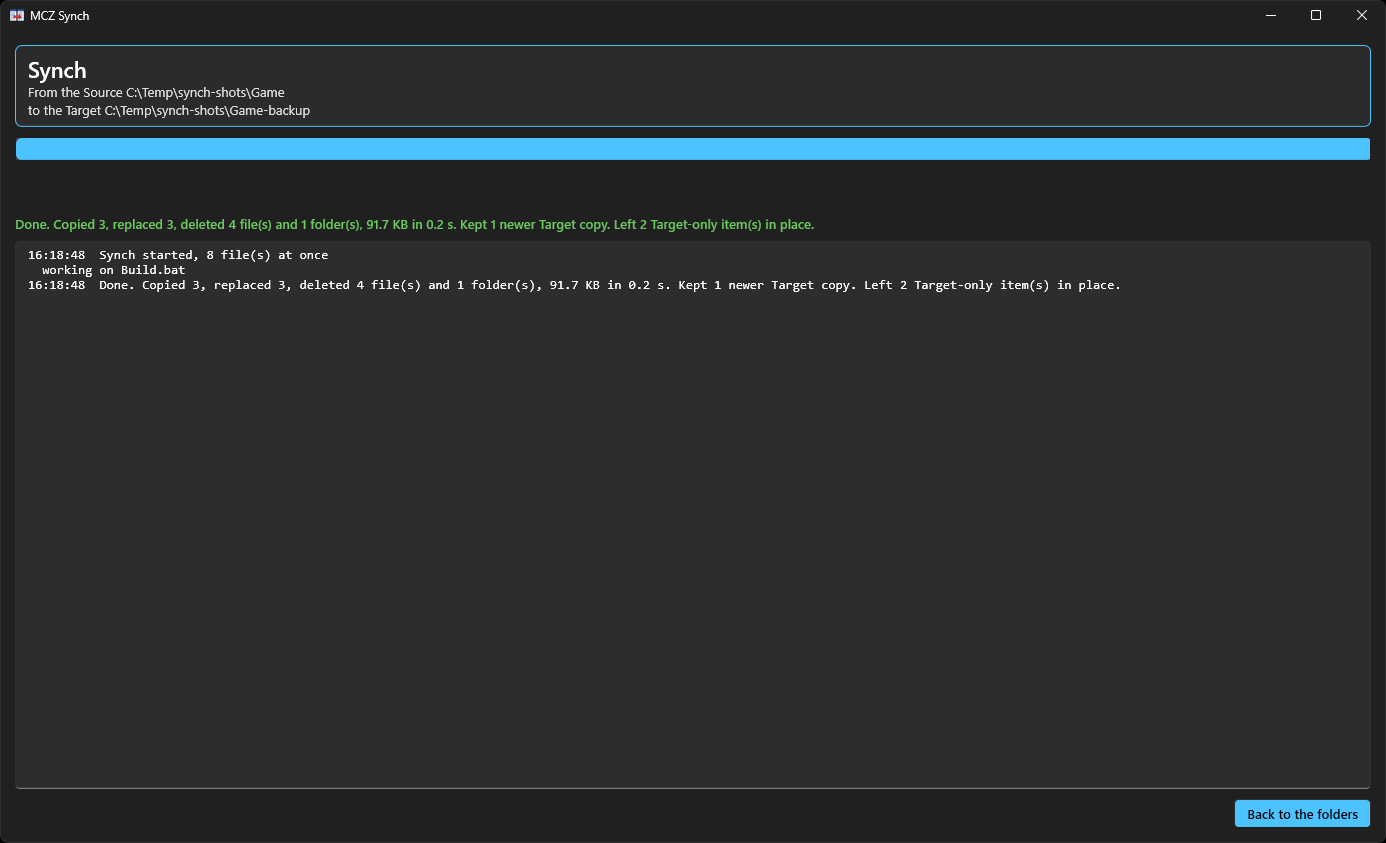
The synch screen
Progress, speed and time left while it works, then what was copied, replaced and deleted, and why any file failed.
What the colours mean
Blue: on one side only
The file or folder is in one copy and missing from the other. The other panel shows an empty line in its place.
Red: on both sides, but different
Different size, or a different date. Tick Compare content to check files of the same size byte for byte. A folder is red when anything inside it differs.
Normal: the same
Folders show what is below them, such as 3 differ, 1 missing, so you can see at once where to look. A mark beside each line says the same as the colour.
Swap
Files always go from the Source (left) to the Target (right). To go the other way, press Swap: the two folders change places and are compared again.
Synch, or Repair / restore
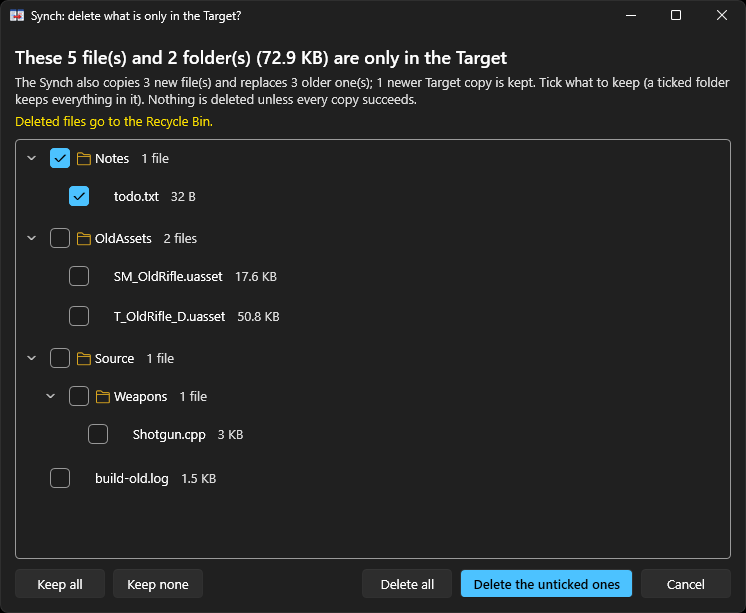
Synch: make the Target like the Source
New files are copied and older copies replaced. A newer Target copy is kept, never overwritten by an older one. Files that are only in the Target are listed by folder first: tick what to keep, and the rest is deleted. Regular backups can skip the list with Delete without showing the list.
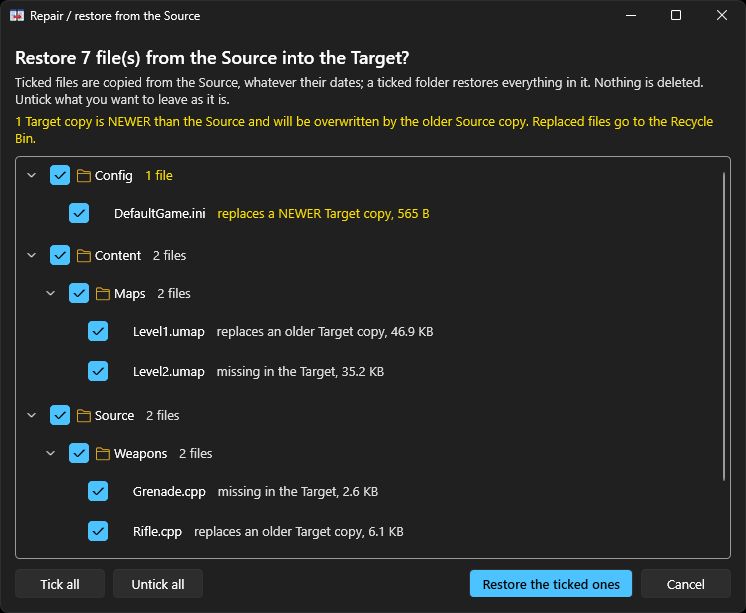
Repair / restore: put back a good backup
When a script or a bad search and replace has damaged a project, the damaged files are newer than the backup. Repair / restore puts the backup's copies back anyway, after a list that marks every newer file it would overwrite. It never deletes anything.
Screenshots from MCZ Synch for Windows, with a test project. The Linux app has the same window.
Safe and fast
- Nothing changes until you say so. Comparing only reads, and every Synch, restore, copy or delete shows what it will do first.
- Recycle Bin. Replaced and deleted files go to the Recycle Bin (the Trash on Linux), so they can be got back. On a network drive they are deleted for good, and the lists say so.
- Deletes come last. Files are deleted only after every copy has succeeded, and a cancel never leaves a half-written file behind.
- Refuses the dangerous ones. Drive roots, system folders, your profile or home folder, the same folder twice and an empty Source that would empty the Target are all refused.
- Several copies at once. Small files are copied 8 at a time (2 on a spinning hard disk), which makes a project of many small files several times faster. You can choose 1 to 32.
- Leaves out build output. Filters for Visual Studio, Unreal Engine, Git and web projects skip the folders that change all the time, and you can add your own names.
- From the command line too.
mcz synch-diff,mcz synchandmcz restoredo the same for scripts and scheduled tasks.
MCZ Synch comes with MCZ 1.9.16 and later, on Windows (Start menu: MCZ > MCZ Synch) and Linux
(mcz-synch). It works on local, USB and network drives; to copy between PCs, use MCZ Copy.
The MCZ Synch manual is on the Download page.