The desktop app
One window, six tabs. Click a screenshot to see it full size. Sharing files with other PCs is in its own app, MCZ Copy.
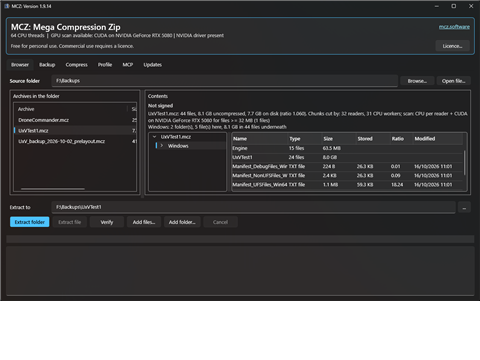
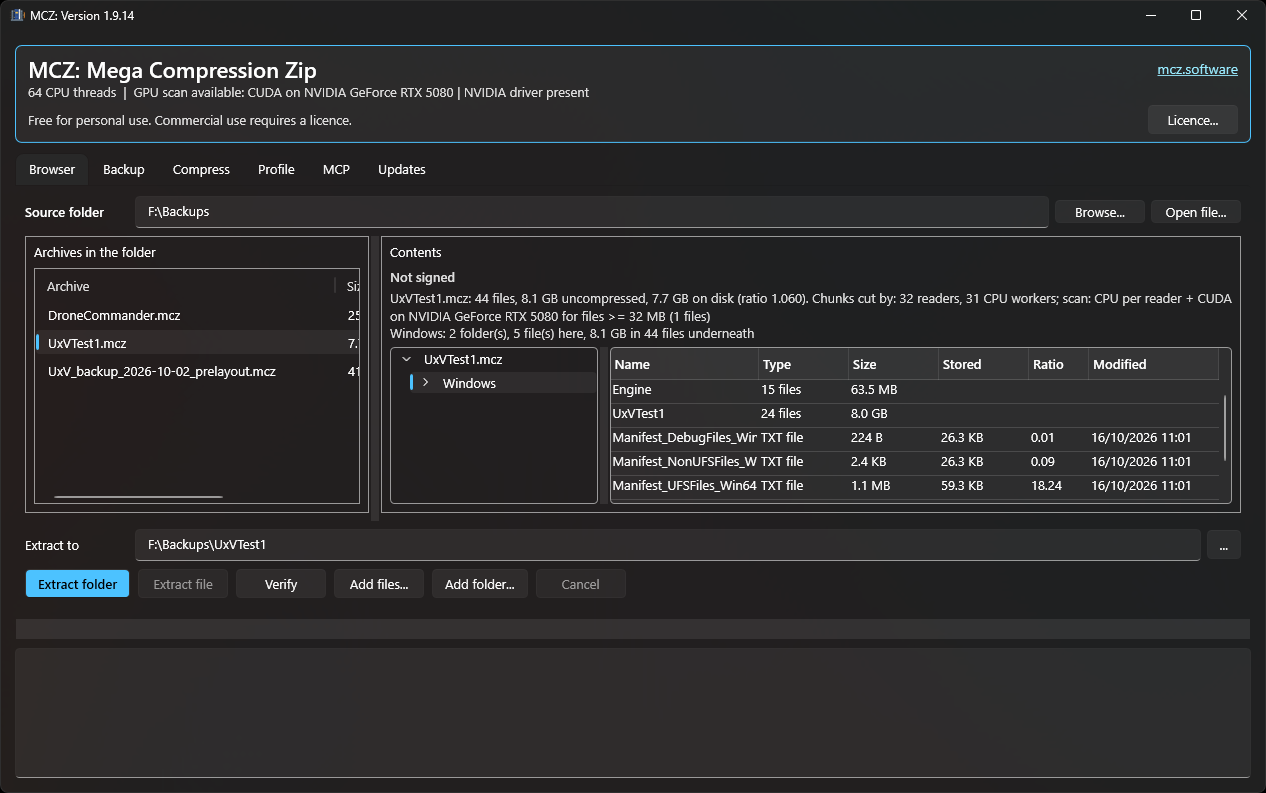
Browser
Look inside archives, extract, verify and add files. Performance optimized for SMB shares.
- Pick a source folder: every .mcz in it is listed. Or use Open file..., or right-click a .mcz in Explorer and choose Open with MCZ.
- Browse the archive like a file manager: folders on the left, files with size, stored size and ratio on the right.
- Choose where to extract, then Extract folder, Extract file, or Verify to check every hash without writing anything.
- Add files... and Add folder... (or drag them onto the file view) add to the archive, into the folder shown. Anything already in the archive under the same name is replaced after you confirm.
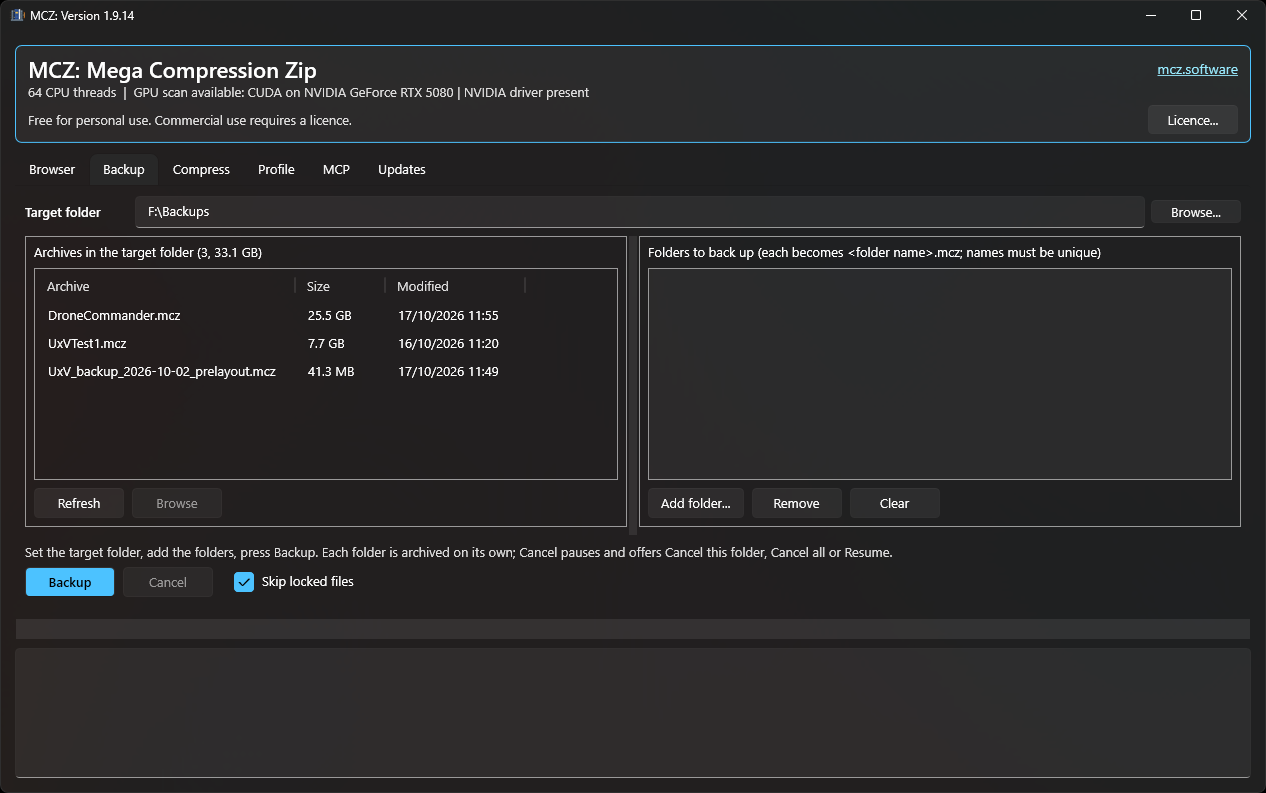
Backup
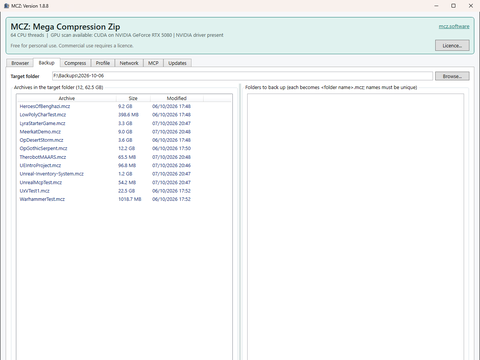
Back up several folders in one go, one archive each.
- Set the target folder; archives already there are listed on the left. Select one and press Browse to see what it holds.
- Add folders (or drag them in). Each becomes <folder name>.mcz in the target.
- Press Backup. Cancel pauses and offers Cancel this folder, Cancel all or Resume. Skip locked files leaves out files another program has open and lists them in the log.
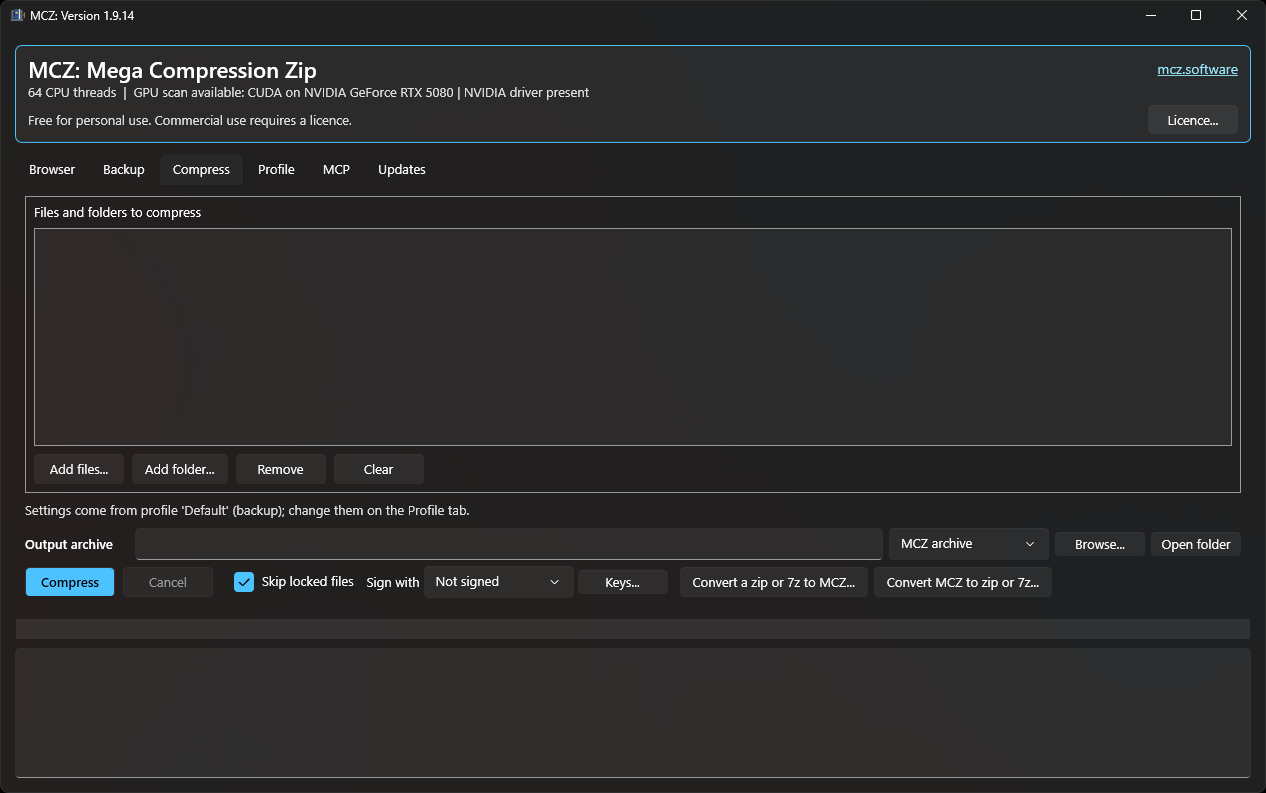
Compress
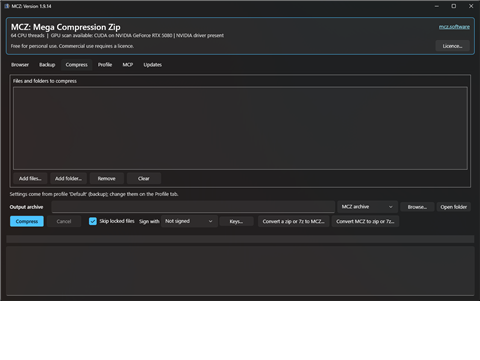
Make one archive from any files and folders.
- Add files, add folders or drag them onto the list.
- The output archive is filled in for you; change it if you like.
- Press Compress. The log shows the time taken and the size as a percentage of the original. Skip locked files works as on the Backup tab.
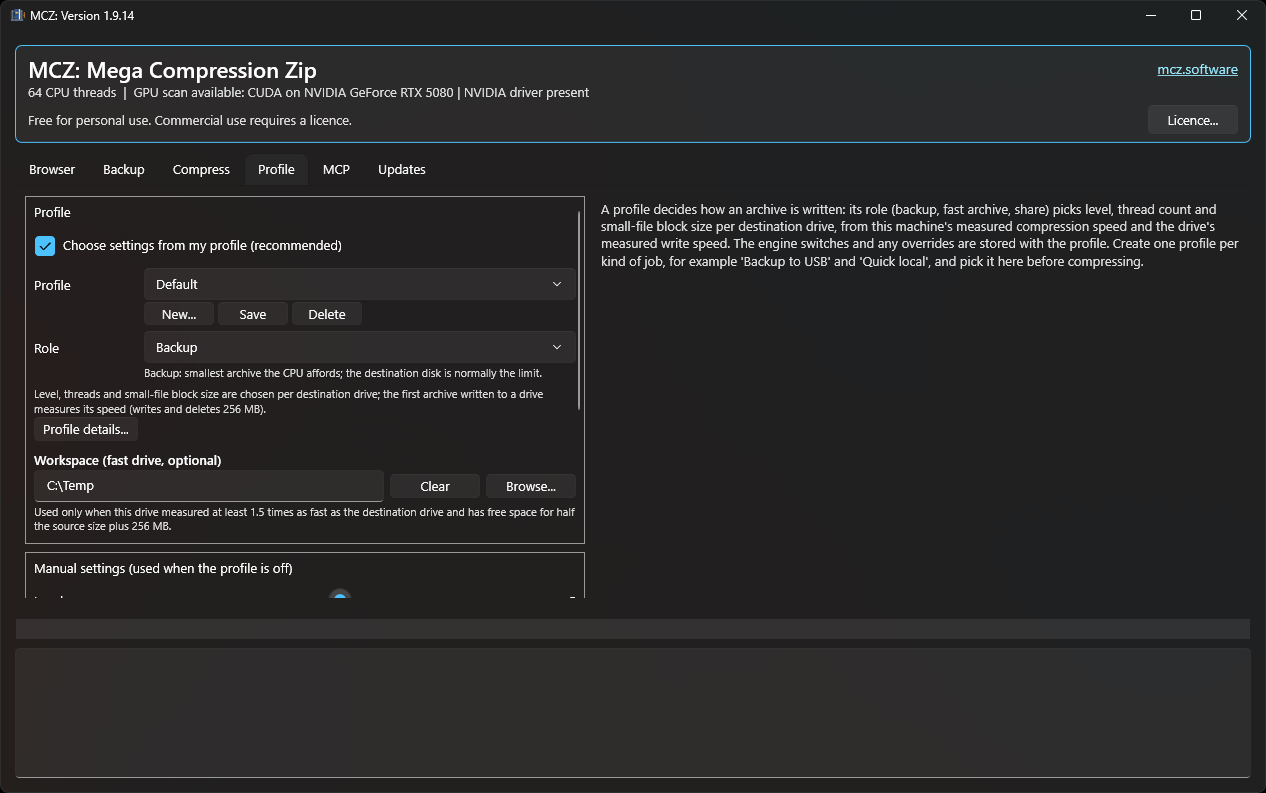
Profile
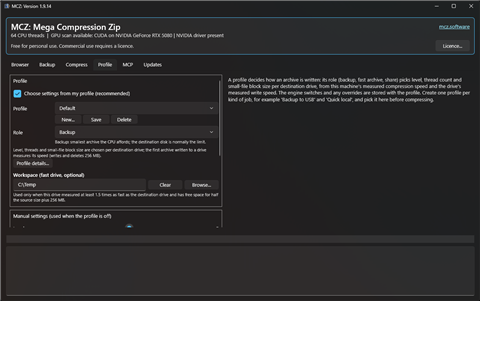
Decide how archives are written.
- Keep “Choose settings from my profile” on: MCZ picks the level and threads for each destination drive.
- Pick a role: Backup (smallest archive), Fast archive (quick local round trips) or Share (single files extract quickly).
- Optional: a workspace folder on your fastest drive, used when the destination is slow. GPU switches are here too.
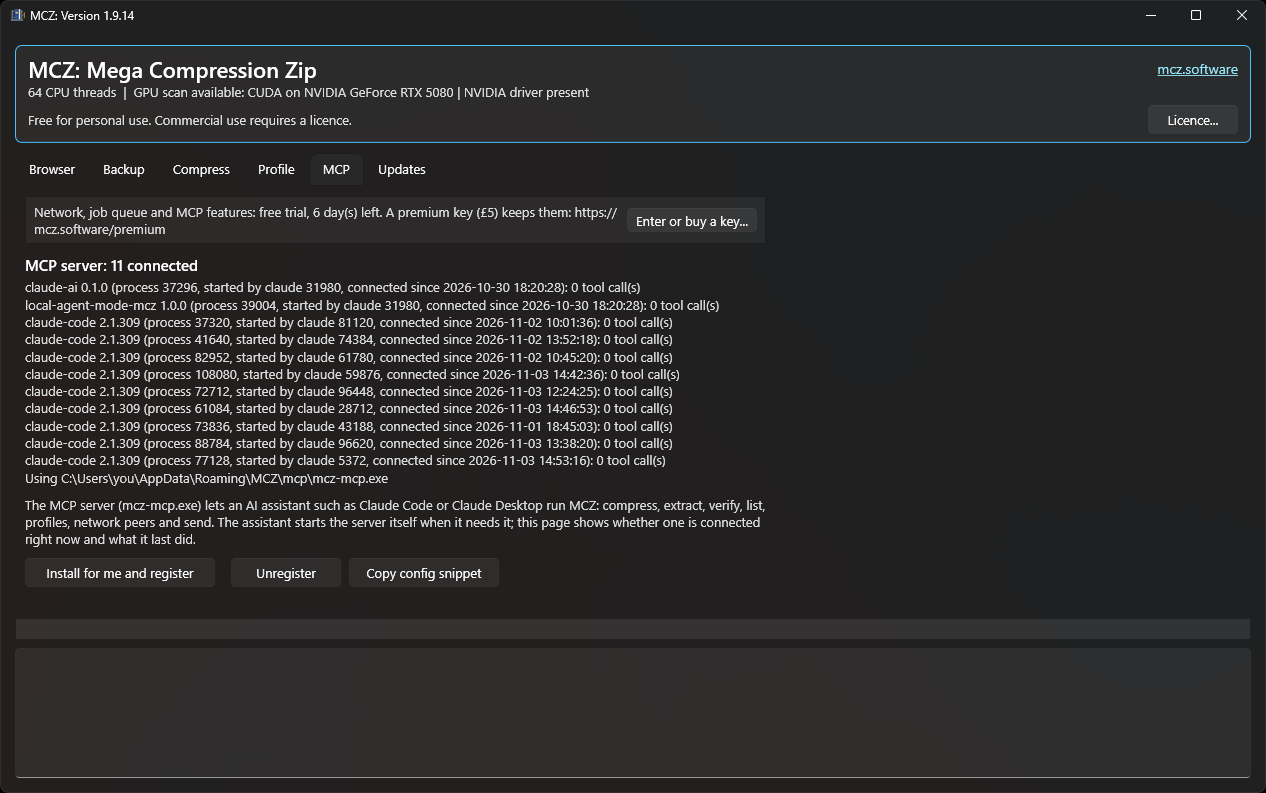
MCP
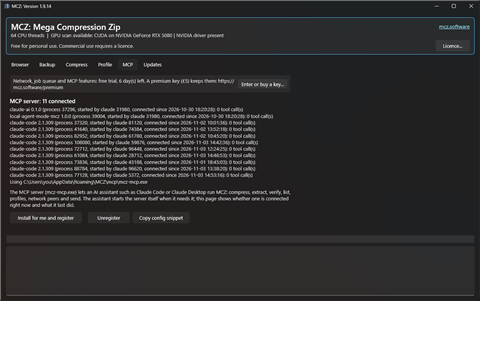
Let an AI assistant such as Claude drive MCZ. Free for 30 days, then a premium key.
- Install for me and register sets up the MCP server for your account.
- The tab shows which assistants are connected and every tool call they make.
- Copy config snippet gives the settings for other MCP clients.
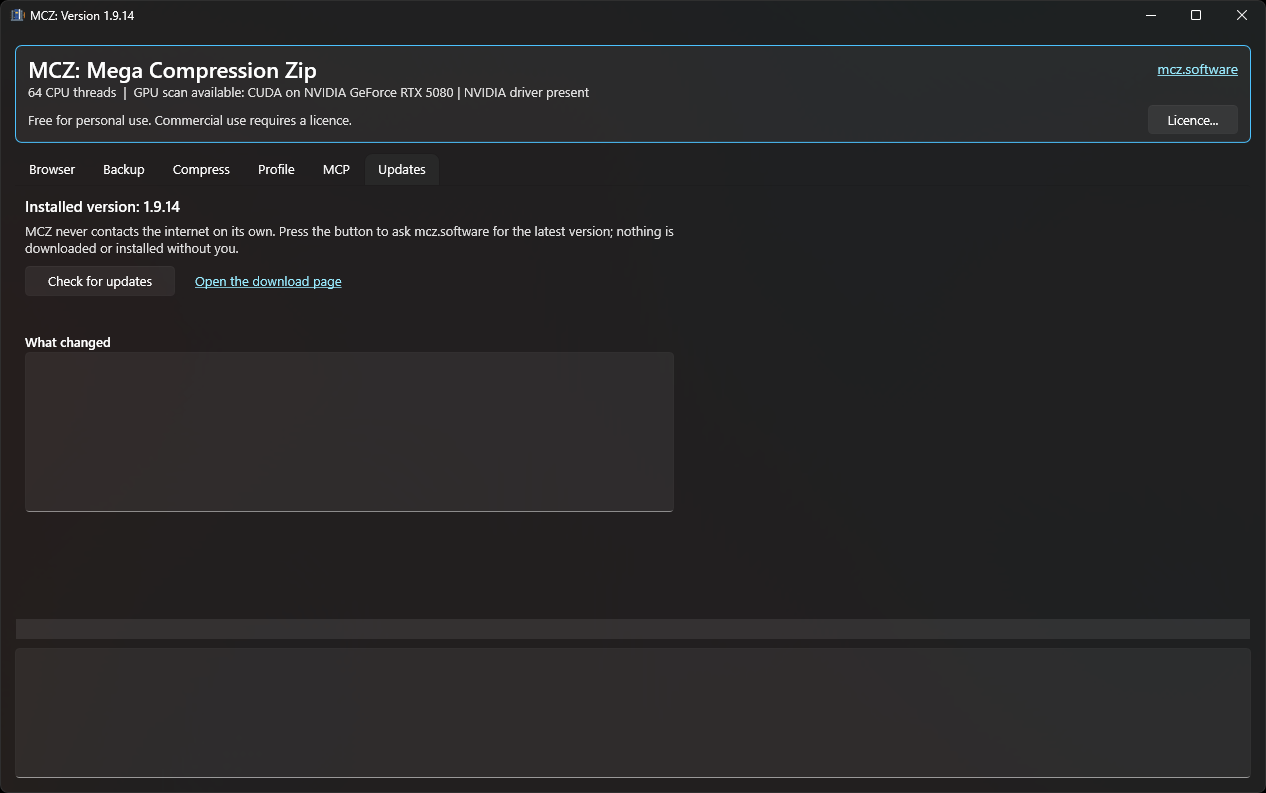
Updates
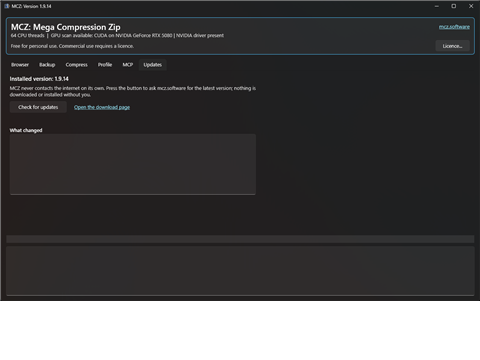
Check for a newer version.
- MCZ never goes online by itself.
- Press Check for updates to ask mcz.software for the latest version and what changed.
- Download the new installer from the website when you're ready.
In File Explorer
You don't have to open the app first. On Windows 11, right-click in Explorer and choose MCZ, next to Compress to:
- On a .mcz file: Open (the Browser tab), Extract (asks where to), Extract Here and Verify.
- On files and folders: Compress (asks where to save the archive), Compress Here (makes name.mcz next to them straight away) and, for folders, Backup.
- On the empty space in a folder: Compress or Backup that folder.
- Drag files and folders onto a .mcz file to add them to the archive.
Every job runs in the MCZ window, with progress. The classic commands (Compress with MCZ, Open with MCZ, Extract here, Extract to folder, Verify with MCZ) are still under Show more options, and are the menu on Windows 10. MCZ is also listed under Open with.
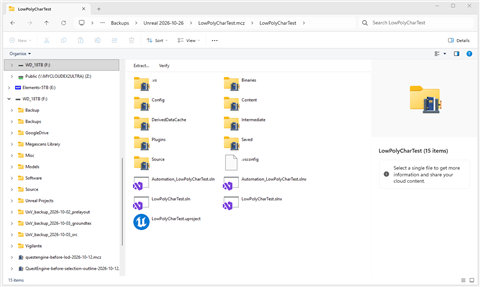
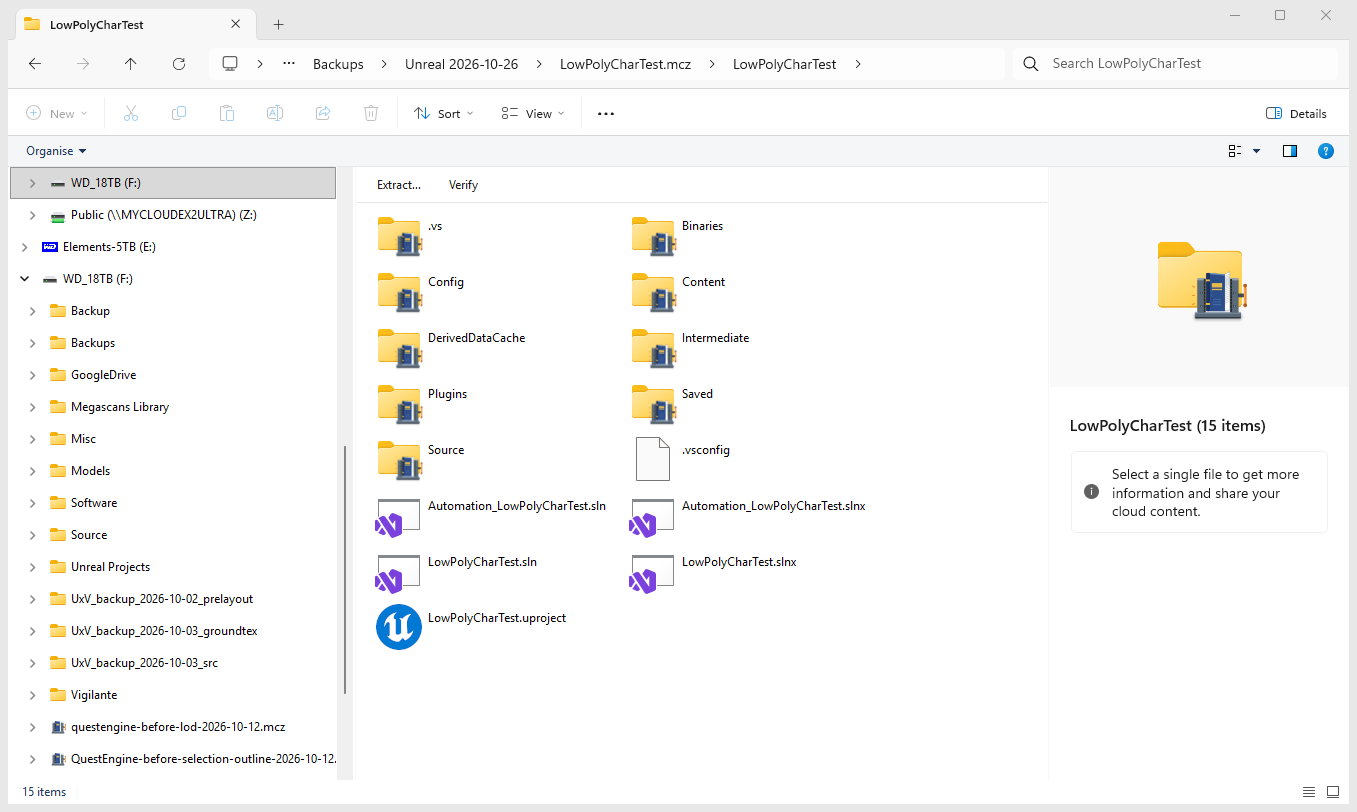
With the installer option Open .mcz archives like folders in File Explorer, double-clicking an archive opens it in Explorer the way a .zip file opens. Browse the folders inside, double-click a file to open it, or drag files in to add them. Extract… above the files asks for a folder and extracts what you've selected (or the whole archive), and Verify checks it; right-click works too. Folders inside an archive show the MCZ logo on the folder icon, so they're easy to tell apart from ordinary folders.
On Linux, double-clicking an archive in Files opens it like a folder too, and Files has an MCZ right-click menu: see the Linux page.
Screenshots from MCZ 1.9.14 for Windows 11. The Linux app has the same tabs. The MCP tab is a premium feature: free for 30 days on each computer, then a one-off key. Full details are in the user manual on the Download page.